Getting Started
- You will need to install Eclipse and setup your repository on BitBucket before you can begin this assignment. You can find instructions for installing Eclipse here, and instructions for setting up BitBucket here.
- Update your repository and locate the Labs/1 directory. If you are using Eclipse, that directory can be used to create a project.
To create the project, open eclipse and go to File -> Import. You should see the following window:
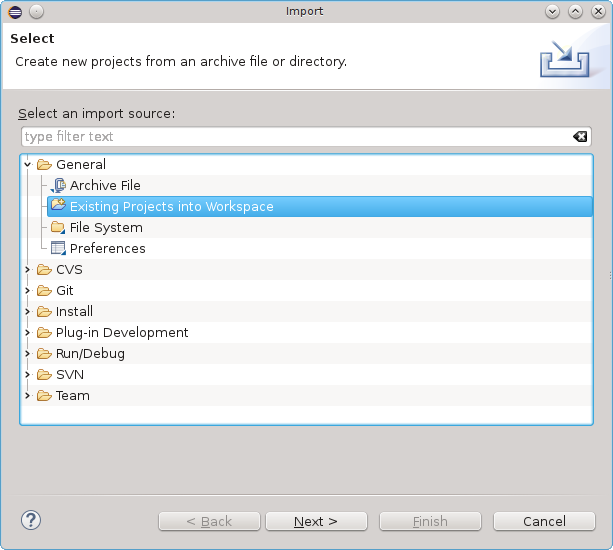
Next, select the "Existing Project" option as shown in the above screenshot. You should then browse for the Labs/1 directory of your repository and select it. - To run the project, find the build.xml file, right click it, and select "Run as -> Ant Build..." A window should pop up that looks like the one below:

Make sure that the "run" target is selected (as shown in the screenshot), then click on the JRE tab. You should now see this window:

Make sure that the "Run in the same JRE as the workspace" option is selected, as shown in the above screenshot. - If you see a BUILD SUCCESSFUL message in the console, then you have run the project correctly. More information about the output of this program is explained below.
Abstract: In this assignment you will implement a simple finite-state transducer, which uses the actions of a finite-state automaton to perform a simple language translation. You will also gain experience with the notation used by CUP (Constructor of Useful Parsers). Specifically, you will design and implement a deterministic finite-state automaton that recognizes fully-declared right-linear CUP grammar specifications. The output (transduction) from your program consists of node and edge declarations for a finite-state automaton.
Behold the general structure of a CUP specification:
| Section | Example |
| Symbol Declarations |
    terminal stringtype lparen, rparen, digit;
non terminal inttype    Number;
non terminal stringtype Parens;
|
Start Declaration | start with Number; | Productions |
Number ::= Number digit
         | digit
         | Parens
         ;

Parens ::= lparen rparen;
|
The phrases terminal, non terminal, and start with indicate the declaration of terminal and nonterminal symbols, respectively. The word immediately following each of those is not a symbol to be declared, but is instead the semantic type of the symbol. So, in the example above, stringtype and inttype are object types for the symbols declared on those lines. We will use these types in further labs, but for now you only need to make sure that a type is given. The distributon of white space is arbitrary, but the above examples were constructed to show good formatting style.
To assist you, the Fsa constructor is passed an Enumeration that is the token stream. There is no end-of-input token: the token stream is exhausted when the Enumeration has no more elements. Each element of the Enumeration is a Token x such that x.type() is one of the following:
| Token.Blank | A string comprised of blanks, tabs, and newlines. Although Blank tries to return the longest such string it can, there are situations when the scanner will return multiple consecutive Blanks. Your finite-state machine must accommodate this. |
| Token.Define | The character sequence ::= |
| Token.Semi | The character ; |
| Token.Or | The character | |
| Token.Comma | The character , |
| Token.Str | A string of characters has been recognized that is not otherwise covered by other tokens. The actual string is accessible as x.strValue() for token x. |
| Token.Terminal | The string terminal |
| Token.Non | The string non |
| Token.Start | The string start |
| Token.With | The string with |
| Token.Other | Anything else (always an error) |
The above tokens can be thought of as an alphabet used for describing CUP specifications. Your first task should be to create a FSA that can determine if a given file is a valid CUP specification. Sketch your FSA out on a sheet of paper. Run a few CUP specifications through your FSA to make sure that it properly accepts them. Run some bad CUP specifications through your FSA as well.
Once you are satisfied with your FSA, you will need to turn it into a transducer. A transducer is a special kind of FSA that performs actions during the state transitions. You will be using your transducer to translate the CUP specification into a FSA. Recall that we discussed how to convert Right-Linear Grammars into FSAs - this is what your code is trying to accomplish.
For this assignment, you will modify only the file Fsa.java, and that is the only file you will turn in.
In your submitted file, be sure to document your approach, including how you decided to treat keywords such as non, with, etc.
The file as supplied contains a skeletal finite-state machine (simulator), driven by the tables GOTO[][] and ACTION[][]. The rows of these two arrays represent states. You will need to expand each of them to contain one row per state in your FSA. The columns of the FSA represent the token that has been most recently seen. The first column represents Blank, the second column represents Define, etc.
The elements of the GOTO[][] array represent which state should be transitioned to next. For example, if I see the value 7 in cell [0][4], that means that I am currently in State 0, I have seen a comma token, and therefore I should transition to state 7.
The elements of the ACTION array represent what actions should be taken for each transition. You will need to fill out the switch statement below this array so that it contains one case per possible action that can be taken. See below for a list of common actions that you will need to perform.
Your assignment is to expand and fill in these tables appropriately, and to add code in the switch statement to perform the required translation.
Actions that you will need to perform:
Upon encountering a terminal symbol definition, your code should record the symbol as terminal in the symbol table by issuing:
symboltable.enterTerminal(symbol)Similarly, nonterminals are recorded by issuing:
symboltable.enterNonTerminal(symbol)
While processing the rules section, you will check each production for right-linear form. That is, there should be only nonterminals on the left side of a rule, and the right side of a rule should be a terminal followed by at most one nonterminal. To determine the type of a symbol previously entered into the symbol table, invoke
symboltable.isTerminal(symbol)which will return true if symbol is terminal, and false otherwise. The method may throw the error SymbolNotFoundError if the symbol was not recorded.
- Upon encountering any error, you may abort, but produce the white-space delimited string ABORT in your output. - You may assume that: * All symbols used in the CUP specification are declared, so that SymbolNotFoundError will not be thrown. * There are no empty productions * Each production group is properly terminated by a semicolon. - For your translation, you are to produce a labeled set of transition edges for the grammar's corresponding finite state machine: * For each production you encounter, you must output a line of the following form:Edge NonTerm1 NonTerm2 label where you supply the strings for NonTerm1, NonTerm2, and label. If the transition is to a final state, then NonTerm2 should be the string $FINAL$. * You must also produce a line to indicate the start state:Start NonTerm
| Sample input | Sample output |
non terminal obj S;
    terminal obj plus, minus, zero, one;
non terminal obj Rest, D;
    terminal obj bogus, not, really, used;
start with S;
S
	::= zero Rest
	|   one Rest
	;

Rest
	::= plus    D
	|   minus   D
	;

D
	::= zero
	|   one
	|   really
	;
|
Start S
Edge S Rest zero
Edge S Rest one
Edge Rest D plus
Edge Rest D minus
Edge D $FINAL$ zero
Edge D $FINAL$ one
Edge D $FINAL$ really
|
You will find a TestFiles subdirectory for this assignment. That directory contains a collection of files you can use to test your solution. While your solution is expected to work on these inputs, your code may be evaluated on other, secret inputs. You are encouraged to test your program to ensure that it operates reasonably on any possible input.
Expected output for the lab's inputs can be found in the Solns folder of the download.
The solutions produced by your transducer can be found in the autogen folder of the project, after you run your program.