E-Homework Guide
This guide describes how to format your homework for electronic
submission, how to actually submit it through Gradescope, and how to
retrieve it after grading.
Contents
Formatting Standards for Homework
You must prepare your homework using a word processor, editor, or
other software that can produce typeset results, including
math. Scans or photographs of handwritten solutions are not
acceptable. Also, please do not use plain text with "ASCII math"
(i.e. simulated displayed formulas produced using creative spacing and
underline/dash characters) or "ASCII art" in place of figures.
We strongly recommend the use of LaTeX to prepare your
solutions. LaTeX is the de facto standard method of typesetting
published work in compter science, and it is especially well suited to
typesetting mathematics. If you are unfamiliar with LaTeX, you can
obtain the necessary software, including an editor
here. You can use this
example document to help you get
started.
The LaTeX Wikibook
may also help as a reference that explains the various features of
LaTeX in much more detail.
Please prepare each problem's solution as a separate document,
since you will be uploading each solution separately to Gradescope for
grading (via Canvas). You may put all the parts of one problem's solution
(e.g. 1(a), 1(b), ...) in a single document. Each solution must have
a header appearing at the top of each of its pages that
includes your name and WUSTL Key ID (e.g. "jbuhler"), the homework
number, and the problem number. Page numbers at the bottom of each
page are optional but recommended.
Your homework should use a page size of 8.5x11 inches ("letter" size;
A4 is also OK). Most text should be in a proportionally-spaced font
with a size of at least 11 points. (However, you might find that a
fixed-width font such as Courier is better for writing pseudocode with
consistent indenting.) You should use black text on a white
background everywhere except possibly in figures. Your figures may be
in color if desired, but your TAs might be red-green colorblind, so
choose your palette appropriately.
Figures may be drawn using the tool of your choice, or even hand-drawn
and scanned as images, so long as they are legible in your final
submission. Vector graphics (i.e. those stored as a set of shapes and
lines) are preferred to bitmapped images such as GIF, PNG, or JPEG,
but either is acceptable. The LaTeX Wikibook includes
instructions on how to include these images in your document,
including how to crop them. You may find the
TikZ package
convenient for drawing figures of graphs, as in
this example.
Place your figures, scaled appropriately, inline at the point where they
are first referenced in your document, or use your editor's "float"
facility (if any) to have them appear at the top or bottom of a page
with suitable captions and corresponding references in the text.
Please do not just put all figures at the end of the document.
Homework Templates
To help you follow these formatting standards, we have created a
LaTeX template as a starting
point for each solution.
How To Turn In Your Homework
Two Important Facts about Homework Submission
-
You must upload and submit homeworks to Gradescope yourself.
The instructor and TAs cannot do this for you. Do not send us your
homework by email or bring it in on a USB stick for us to upload on
your behalf.
-
Homework is due at 11:59 PM on the due date. If
you submit your documents after the displayed due date and time,
Gradescope will mark them late. The policy for late homework
submission is described on the course homepage; if any of your
files are submitted after the deadline, the entire assignment will be
considered "late." Please leave yourself sufficient time to upload,
check, and submit all your solutions!
Submission Procedure
- Step 1: Save your documents in final form. The preferred
format for turning in your homework documents is PDF, which you should
be able to create directly from your word processor or editor.
TeXstudio and TeXShop compile to PDFs by default. Alternatively, you
can use pdflatex or dvipdf to generate PDFs from LaTeX documents.
No other format is acceptable for turning in homework.
You can name your documents whatever you want, but I recommend that
you limit the characters in your names (other than the file extension,
if any) to English letters, numbers, spaces, dashes, and underscores
to avoid tickling any unexpected bugs in Gradescope.
- Step 2: Go to the turn-in folder. Log into Canvas
(https://wustl.instructure.com/) and
select the correct course and semester from the Dashboard (CSE.347.01, Spring 2019).
From the navigation bar on the left-hand side of the screen, select Gradescope (second
from top, just below "Home"). You will see a screen like the following:

Click the homework assignment you want to submit. Although Gradescope gives you the
option to upload a single file and mark which pages correspond to which problem, we
recommend selecting to submit "Individual images, one per question."
You'll then see an icon and link for submitting a solution to each
individual problem:
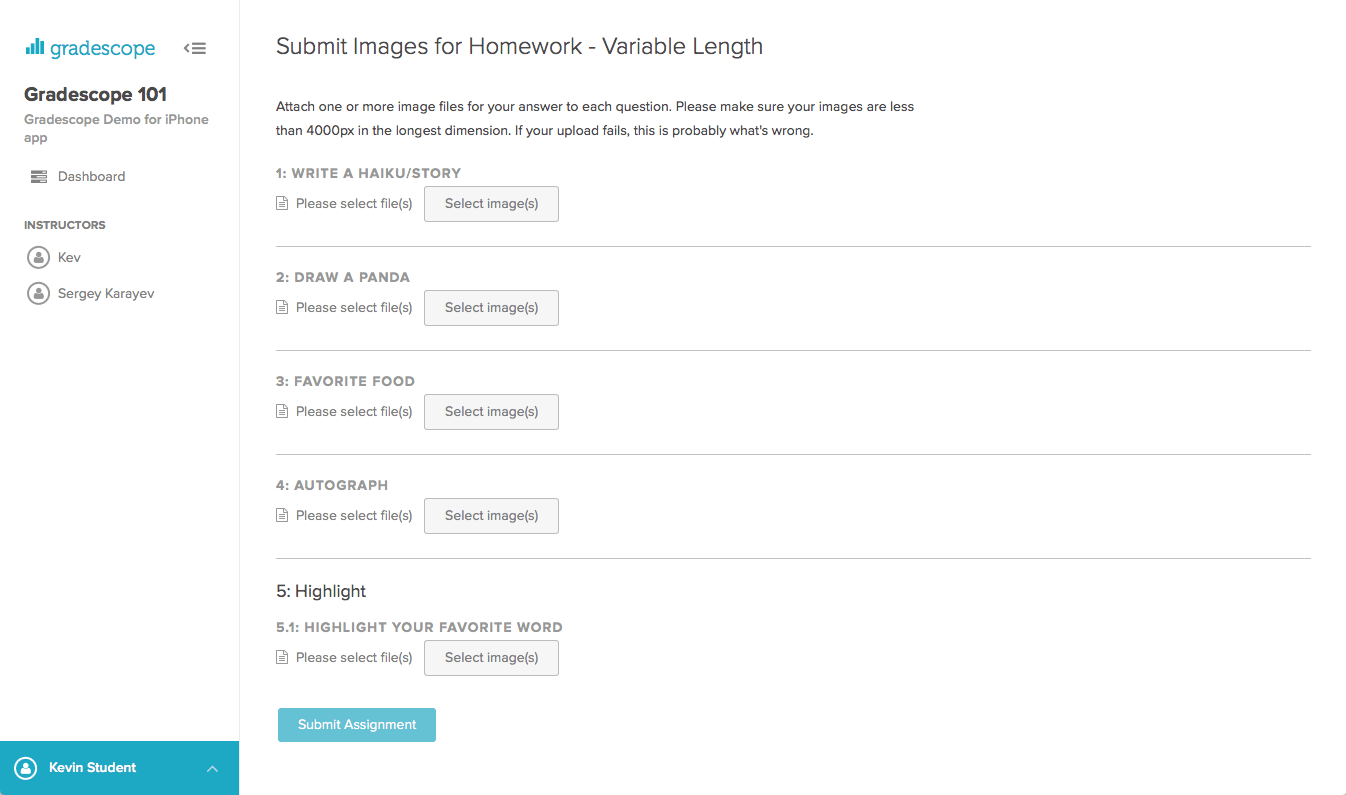
- Step 3: Upload your first document. Click on "Select Image(s)" for
the first problem whose solution you wish to submit, and pick the file you wish to
submit. Repeat this for each problem, until you have submitted all of the problems.
- Step 4: Submit your document. Your solution is not
turned in and will not be visible to the instructor or TAs until you
click the "Submit Assignment" button. This will not be done automatically,
even if you've uploaded drafts -- you must hit "Submit Assignment" for
each solution to turn it in.
- Step 5: Review your submitted document
(optional, but recommended). If you click on the assignment from the course
dashboard again, you will be able to review your submission. Check carefully to make
sure the document appears as you expect. Note that you can
resubmit from this page by clicking the "Resubmit" buttion in the bottom-right.

You can resubmit from this page any number of times until the submission
deadline. After the submission deadline and until grading is finished, you will see
this same page.
Getting Your Homework Back
The TAs will grade each of your homework solutions in Gradescope. As
each problem's solution is graded, a grade will be posted to the
corresponding column in the course grade book.
To see your graded solutions, again log in to Gradescope via Canvas (repeating Step 2
above): select CSE.347.01 from the Canvas dashboard and select Gradescope from the
left-hand menu bar. Once grades are released, the status for the assignment on the
Gradescope dashboard will change from "Ungraded" to "Graded," and you will be able to
see the total score for the assignment.
To see the scores for each individual question and grader comments, click on the
assignment from the course dashboard again. For each solution, you'll see the points
awarded and the time
it was entered.

For each solution, you'll see the points awarded and the graders' comments. You will
also see all of the rubric items, with the rubric items applied to your assignment
highlighted.
You can then examine the notes and comments on the document.
You can download the marked-up version of the document for your
records as a PDF by selecting the Download button on the bottom menu bar.
If you wish to dispute the grading of a particular
problem, the TAs and the instructor can see your marked-up homework in
Gradescope; you don't need to print it out or send us a PDF.
We will retain your marked-up homework documents in Gradescope until
the end of the semester.
CSE 347
Last update: 1/7/2019